Suppliers Tab Overview
The Supplier Tab is used to store the Name, Location and Contact details of the Supplier. It also offers both a free-format Comments field and Description field.
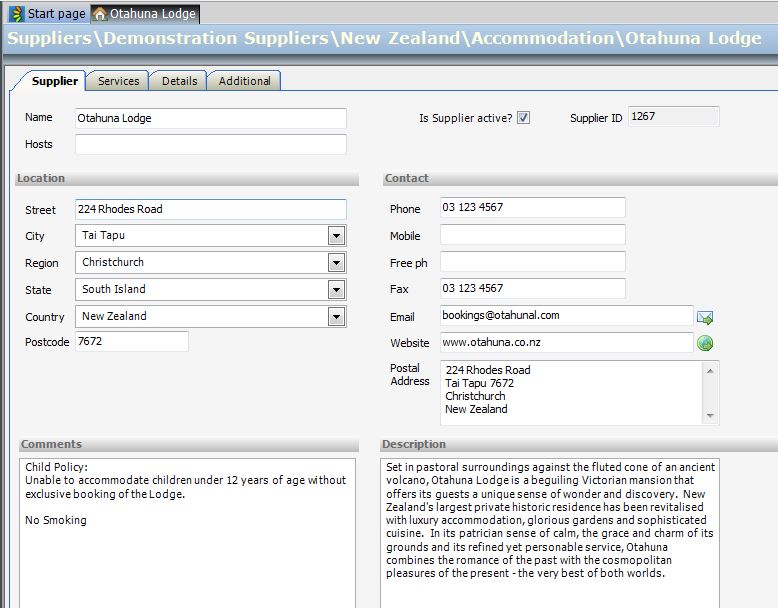
Name
Enter the name of the Supplier as you would like it to appear on ALL Supplier Correspondence. Make sure that all Travelmesh users in your company enter the Name in the same format.
Hosts
Option 1: Enter the key reservations contact person name, e.g. Bob Smith – your email booking requests will say Dear Bob Smith Option 2: Leave blank – your email booking requests will default to say Dear Reservations
Is Supplier Active?
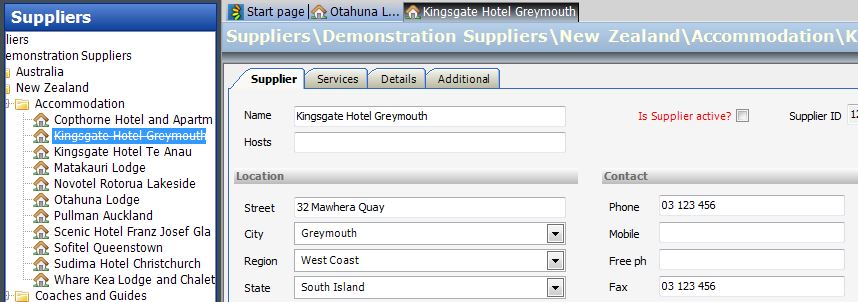
If this box is ticked the Supplier is active. If you untick this box you will deactivate a Supplier and a line will appear through the name of the Supplier in the Suppliers index to the left of the Supplier field. Remember to Save the change after you have deactivated a Supplier. IMPORTANT We strongly recommend that you deactivate a Supplier instead of deleting it. This will enable you to reactivate it at any stage and maintain a record of the data associated with a deactivated Supplier. We also suggest that you move deactivated suppliers to a separate folder where they can sit (out of view) for possible future use. If you need to use an inactive Supplier you just reactivate it and drag and drop it to the appropriate active supplier folder.
Supplier ID
Each Supplier has a Supplier ID. This field is automatically populated by Travelmesh when you load a new Supplier. The Supplier ID can be used to Search (Ctrl+F) for a Supplier.
Location
StreetEnter physical address of the supplier City, Region, State and Country This field is automatically populated with data loaded in Tools > Setup > Locations. This information will appear on client documentation (e.g. vouchers)
Contact
Phone / Mobile / Free PhoneThese fields are used to store the contact phone numbers for each Supplier. In order to create tidy uniform documents. it is important to use a standard format for phone details, as this data will pull-through to documentation, e.g.vouchers and reports (if coded to do so). Ensure all area codes are entered in these fields.
FaxThis field stores the Fax number for a Supplier (if applicable). Ensure all area codes are entered in this field.
EmailEnter the Supplier’s email address here. Click on the adjacent Envelope icon to open the Supplier create an e-mail to the Supplier. IMPORTANT – Ensure there are no spaces at the beginning, or end, of an email address as this will prevent you from emailing a booking request. An audit trail of all e-mails sent from Travelmesh are stored in both Suppliers and Itineraries on the Additional > Messages Tab.
WebsiteEnter the Supplier’s website address here. Click on the adjacent World icon to open the Supplier’s website. Again, ensure there are no spaces at the beginning, or end, of a website address as this will prevent you from accessing a Supplier’s website from here. There is no need to include “https://”.
Postal AddressThe postal address is the address used to physically send post to a Supplier and should not be confused with the Supplier’s physical address, which is often different.
CommentsA passive (i.e. data is not published anywhere), free-format field to use for internal comments. Suggested uses – Rate loading notes, child policy etc.
DescriptionA passive, free-format field to use for a description of the supplier.