This helpfile guides you through installing Travelmesh and My Secure Backup apps in a sequential structure.
How to install Travelmesh on a Computer (Online)
- Download and install Tourwriter: (Reach out to the Support team to access the latest Travelmesh build)
- Open Tourwriter
- Click on Online Database (or click Setup and then do this)
- Enter the Connection Key (provided by your Travelmesh Implementer); we recommend that you copy and paste to avoid typing errors
- Click the OK button (this setting will be remembered)
- Login with your existing Travelmesh username (ask an existing Travelmesh User to add you, if you do not have a login: Tools > Setup > User Accounts).
How to Install the Online File Server / Network Drive on a Computer
Travelmesh users who opt to host the Travelmesh Database and TourwriterData folder online with TravelMesh, will need to take the following steps to:
- Install the online file server / network drive on a computer
- Link the Travelmesh Data folder to the Travelmesh Database
IMPORTANT: Travelmesh uses Travelmesh – My Secure Backup to create and host the online file server / network drive for Travelmesh clients.
Each staff member must set up access to the online file server / network drive from their own computer.
Each staff member should choose the same drive letter for their online drives.
To install the online file server / network drive:
- Download from here
- Install and setup the online drive
- During install, you will be prompted to enter the following login:
Domain: travelmesh-c3
Username: xxxxxxx (provided by Tourwriter)
Password: xxxxxxx (provided by Tourwriter)
Travelmesh users can access the online file server / network drive from any web browser (no install required), just go to this address www.mysecurebackup.net and enter the above login.
Note for Mac Users
When choosing your My Secure Backup installation file, please select the appropriate Windows download option (not Mac), as you will be installing this software on the Windows side of your Mac.
How to Link the TourwriterData Folder to the Travelmesh Database
Once your TourwriterData folder and sub folders have been created, please follow the instructions below, to link your TourwriterData folder to your Travelmesh database:
- Log into Tourwriter
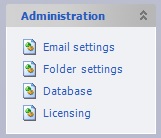
- Go to Tools > Setup > Administration > Folder settings
- Click
 to the right of the empty External files field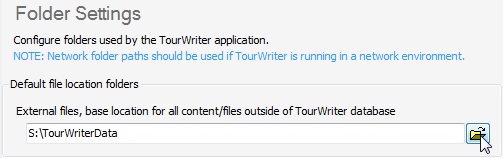
- Navigate to the TourwriterData folder you have created (select the TourwriterData folder name only)
- Click the OK button. Your Default file location will now say e.g. C:\TourwriterData
- Save this change in Travelmesh (Ctrl + S, or the Save button on the toolbar)
- The TourwriterData folder setup is complete.